|
Podcast Management Quick Tutorial First, sign in at http://apps.astate.edu/podcast 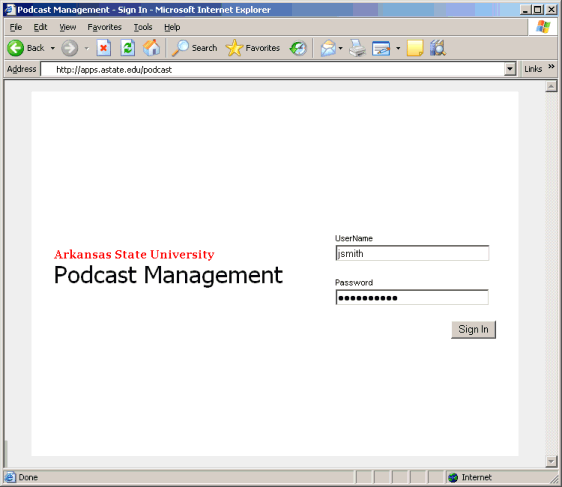
This is your channel summary page, where you can (1) create new channels or (2) manage existing ones. 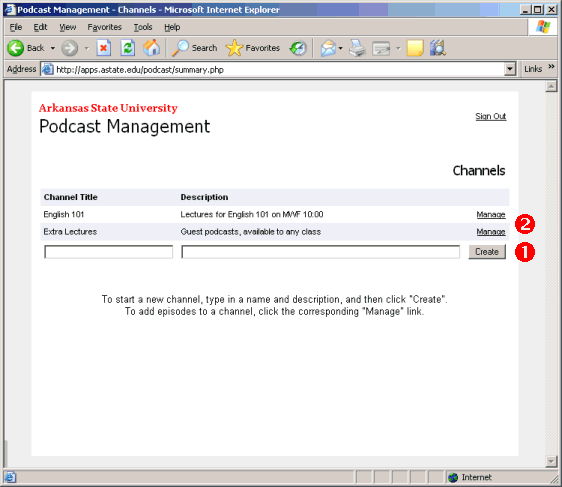
When you click the Manage link for a channel, you'll see this page. The very first button will let you (1) delete the entire channel, including episodes (a prompt will stop and make sure you really want to do this, so don't worry about accidental mis-clicks). You can also change the channel title and description by typing in the new information, and clicking (2) Update. 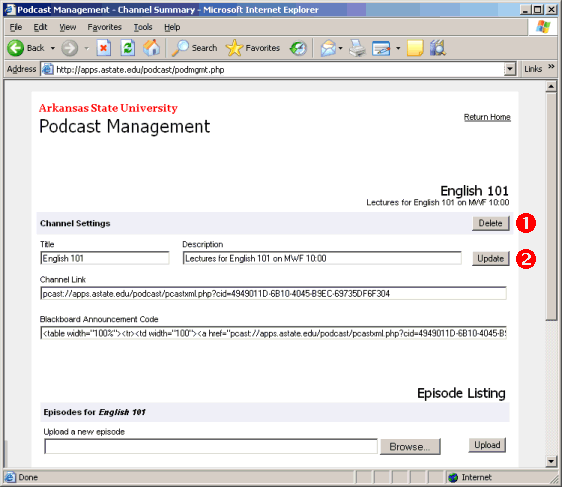
Scroll down to see a list of episodes in this channel. To add episodes, (1) browse and upload audio from your computer or digital voice recorder. After uploading, type a (2) title and description and click (3) save. If your audio isn't already in MP3 form, you can click the (4) convert button to change any audio into an MP3. And finally, you have a (5) delete button to remove an episode from the channel. 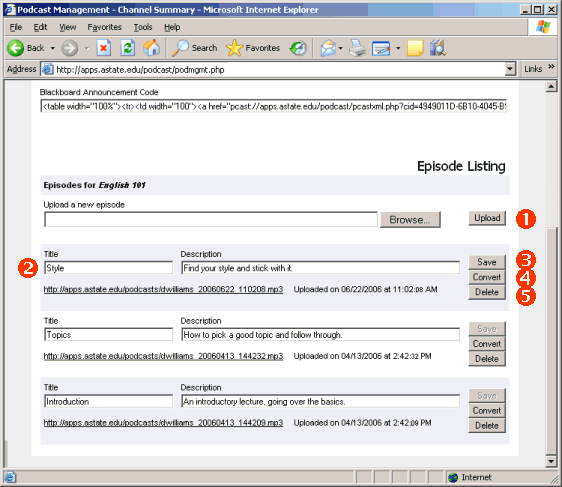
To give users access to your channel, you will have to provide them with a channel link. This is available to you as a (1) URL and as (2) Blackboard announcement code. 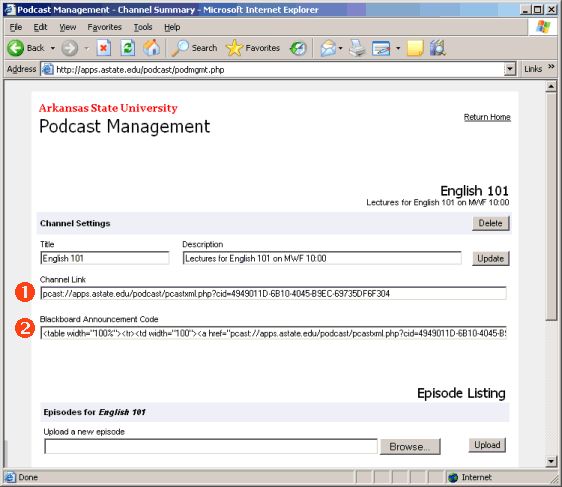
You can use the channel link URL just like any other URL. Here's an example in FrontPage, where you would (1) highlight the text or image you want to link, (2) click the hyperlink button, and (3) paste the channel link into the address field. Be sure the link starts with pcast:// . 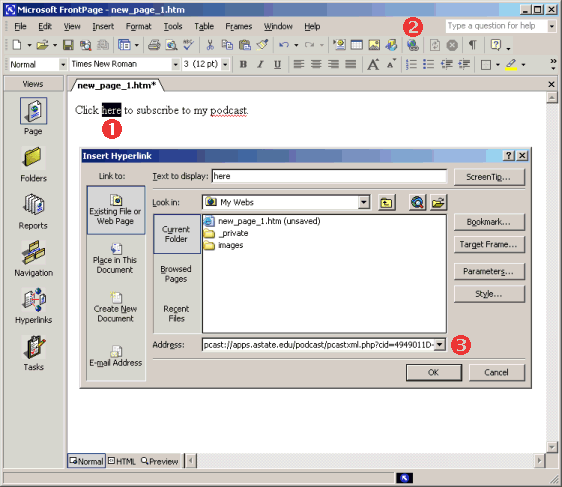
You can use the plain channel link in Blackboard, or you can use the pre-formatted Blackboard announcement code. Create a new announcement in Blackboard, and (1) paste the announcement code into the message field. Be sure to select the (2) HTML option. You can set the other announcement options (like subject, time restrcitions, etc.) any way you like. 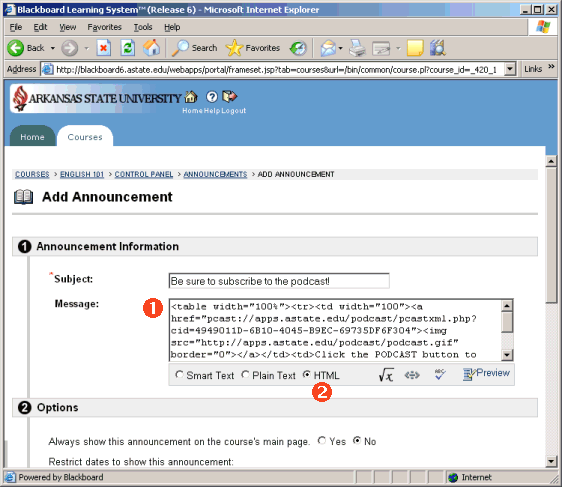
A user only has to click the channel link once, which will subscribe them to your channel. After that, the user will recieve updates on his or her audio player automatically, any time you add an episode. |